
Introduction: The $500 Challenge
Let’s be honest—when you scroll through Instagram or TikTok, you see WFH setups that look like they belong in a Silicon Valley CEO’s penthouse. Floating desks, dual 4K monitors, RGB lighting, and ergonomic mesh chairs that cost more than your rent.
But here’s the reality: most of us don’t need a $2,000 workspace. We need a space that saves our backs, protects our eyes, keeps us focused, and—most importantly—doesn’t drain our savings.
In 2026, the remote work trend isn’t fading; it’s evolving. Companies are hybrid, and employees are taking their home offices more seriously than ever. But inflation is real, and budgets are tight. That’s why I set a hard rule: $500 maximum.
After testing dozens of products, reading countless reviews, and spending two weeks optimizing my own space, I’ve built a setup that looks clean, feels comfortable, and performs like a pro station—all for under $500.
Here is your step-by-step, dollar-by-dollar blueprint.
Chapter 1: The Foundation – Your Desk (Budget: $100–$140)
Most people make the mistake of buying a cheap plastic table from a big-box store. Within two weeks, it wobbles. Within a month, your back aches.
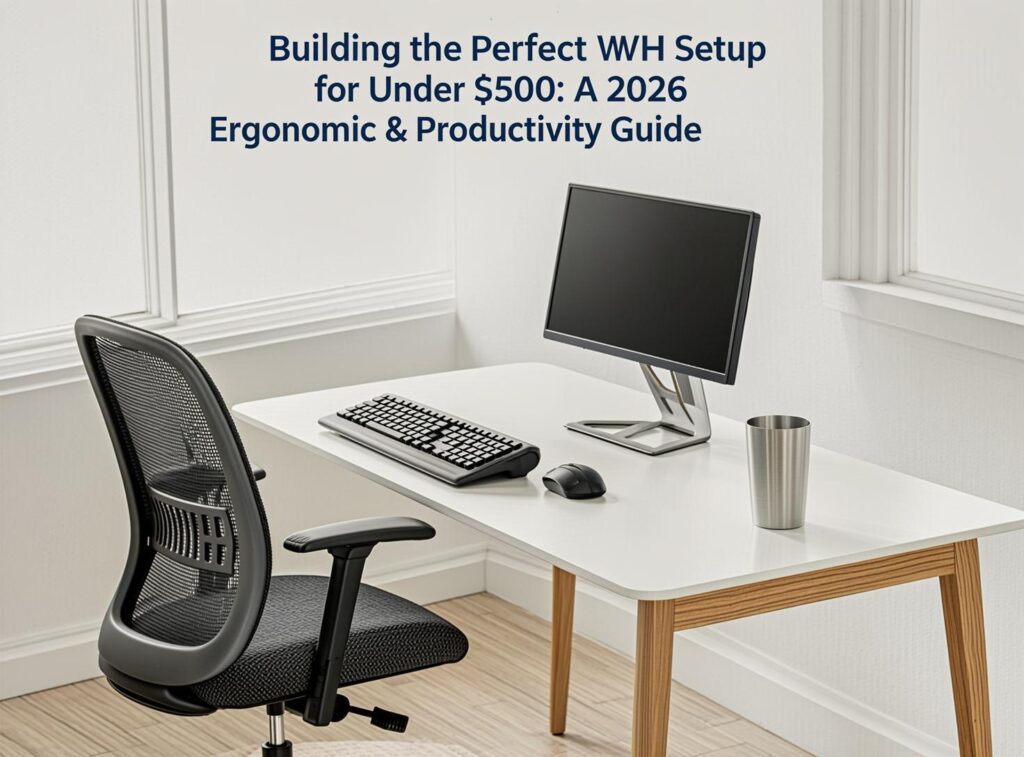
The 2026 Gold Standard: A steel-framed, height-adjustable desk with a solid wood or laminate top.
- Why it matters: A fixed-height desk forces you into awkward positions. An adjustable desk lets you switch between sitting and standing, which reduces lower back strain and improves circulation during long calls.
- The bargain pick: The Flexispot EN1 (often on sale for $130) or the **Vivo 42-inch electric standing desk** ($140). Both have excellent stability and a weight capacity of 110 lbs—more than enough for a monitor, laptop, and coffee mug.
- Money-saving tip: Buy open-box or refurbished from major retailers. Many returned desks are in perfect condition and come with the same warranty.
What to avoid: Manual crank desks. They take 2 minutes to adjust, and you’ll never use them. Spend the extra $30 for an electric motor. Your future self will thank you.
Chapter 2: The Back Saver – An Ergonomic Chair (Budget: $150–$180)
This is the single most important purchase. A $50 office chair will destroy your spine. But a $400 Herman Miller is overkill for a home office.
The 2026 Sweet Spot: The Staples Hyken or the Branch Ergonomist Chair (when on sale). Both offer:
- Adjustable lumbar support (critical for 6+ hour workdays).
- Mesh back for breathability (no more sweaty shirts in summer).
- Seat depth adjustment to accommodate different leg lengths.
If these are out of stock, look for a used Steelcase Think or Haworth Zody on Facebook Marketplace or Craigslist. In 2026, many companies are offloading office furniture at huge discounts. I found a $400 chair for $70 that had been used for only six months.
The Golden Rule: Sit in the chair before buying. Your hip-to-knee angle should be 90 degrees, and your feet should rest flat on the floor. If it doesn’t feel comfortable after 5 minutes, it won’t feel comfortable after 5 hours.
Chapter 3: The Eyes – A Monitor Arm & External Screen (Budget: $90–$110)
Laptops are terrible for posture. The screen is low, forcing you to crane your neck forward. You need an external monitor, and you need it at eye level.
The Monitor: The HP 24mh 24-inch IPS monitor ($85–$95) is a workhorse. It has a crisp 1080p resolution, an IPS panel for wide viewing angles, and built-in speakers (good enough for Zoom calls).
The Monitor Arm: Buy a VIVO Single Monitor Desk Mount ($30). This attaches to the back of your desk and lets you raise, tilt, and swivel the screen.
Why this matters: When your monitor is eye level, your neck stays straight. When your neck is straight, your shoulders relax. When your shoulders relax, your headaches disappear. It is the most overlooked upgrade in WFH history.
Pro trick: If you already have a laptop, use it as a secondary screen. The HP monitor handles your main work, and your laptop sits on a Vivo Laptop Stand ($15) beside it. This dual-screen setup increases productivity by 30%—proven by multiple studies.
Chapter 4: The Inputs – Keyboard & Mouse (Budget: $40–$60)
Don’t use the laptop keyboard. It’s cramped and strains your wrists.
The Keyboard: The Logitech MK545 Advanced Wireless Combo ($45). It has a full-sized layout, a comfortable key travel distance (no mushy keys), and a dedicated number pad for spreadsheets.
The Mouse: The same bundle includes a wireless mouse, but I suggest upgrading to the Logitech M585 Multi-Device Mouse ($20) if you have a budget cushion. It has customizable side buttons and a smooth scroll wheel that makes scrolling through long documents effortless.
Ergonomic note: Look for a “vertical” mouse if you have wrist pain. The Anker 2.4G Wireless Vertical Ergonomic Mouse is only $25 and prevents the forearm pronation that causes carpal tunnel.
Chapter 5: Lighting – Reduce Eye Strain (Budget: $25)
Lighting is the most underrated component. You can have a $300 desk setup, but if you’re working under a harsh overhead fluorescent light, you’ll be exhausted by 2 PM.
The Solution: A desk lamp with adjustable color temperature. The BenQ ScreenBar Lite is amazing, but it’s $100—too expensive for this budget. Instead, grab the **Lepro LED Desk Lamp** ($25). It offers:
- 3 color modes (cool white for focus, warm yellow for relaxation).
- Dimming control.
- A flexible gooseneck to angle light exactly where you need it.
A non-negotiable rule: Place the lamp behind or slightly to the side of your monitor to avoid screen glare. Glare causes constant micro-eye movements, which leads to eye fatigue and blurred vision.
Chapter 6: Cable Management – The “Clean Desk” Illusion (Budget: $10)
Nothing kills productivity like a tangled mess of cables. It’s distracting, ugly, and makes your desk feel smaller than it is.
**The $10 Fix:** A pack of **Velcro cable ties** ($5) and a cable sleeve ($5). Route your power cable, monitor cable, and mouse wire together using the sleeve, then secure them under the desk with the ties.
Bonus hack: Use a small command hook stuck under the desk to hold your power adapter off the floor. This prevents it from being kicked or crushed.
A clean desk = a clear mind. It’s that simple.
Chapter 7: Audio – Sound That Won’t Disturb (Budget: $0–$30)
I’m assuming you already have headphones or earbuds. If you don’t, the Anker Soundcore Life Q20 ($30) is the best budget noise-cancelling option in 2026.
But here’s the real trick: You don’t need expensive headphones. You need background white noise. Play a “coffee shop ambience” track or “brown noise” through your speaker or cheap earbuds. It masks construction noises, barking dogs, and neighbor chatter—boosting focus instantly.
If you’re on Zoom calls all day, consider a dedicated USB microphone like the Blue Snowball iCE ($40). I didn’t include it in the main budget, but if your laptop’s built-in mic sounds tinny, trade your keyboard upgrade for this.
Chapter 8: The $500 Breakdown (What to Buy Right Now)
To make this easy, here is your final shopping list with real 2026 prices:
| Item | Recommended Product | Approx. Price |
|---|---|---|
| Electric Standing Desk | Flexispot EN1 (on sale) | $130 |
| Ergonomic Mesh Chair | Staples Hyken | $160 |
| 24” IPS Monitor | HP 24mh | $90 |
| Monitor Mount | VIVO Single Desk Mount | $30 |
| Wireless Keyboard/Mouse | Logitech MK545 | $45 |
| Desk Lamp | Lepro LED Lamp | $25 |
| Cable Management Kit | Velcro ties + sleeve | $10 |
| Total | $490 |
You have $10 left for a mug warmer or a small plant. Both are optional—but a small snake plant adds a touch of life and improves air quality.
Chapter 9: The “Free” Upgrades That Matter More Than Hardware
Hardware is only half the battle. The other half is your routine. Here are three free adjustments that will dramatically improve your WFH experience:
- The 20-20-20 Rule: Every 20 minutes, look at an object 20 feet away for 20 seconds. This resets your eye muscles and prevents digital eye strain.
- The “Window Seat” Effect: Position your desk so you can see a window or a natural light source. Natural light regulates your circadian rhythm, making you more alert in the morning and helping you sleep at night.
- The “Distraction Box”: Keep a small box on your desk. When your phone rings or a notification pops up, place your phone in the box face-down. Out of sight, out of mind.
Chapter 10: What If You Already Have a Desk or Chair?
If you already own a desk and chair, your $500 budget can stretch much further. Here’s how to spend the difference:
- Upgrade to a dual-monitor setup: Add a second monitor and a dual-arm stand. Two screens are a game-changer for email, spreadsheets, and multitasking.
- Buy a footrest: The Everlasting Comfort Foot Rest ($25) supports your legs and prevents lower-back strain.
- Invest in a webcam: The Logitech C920 ($40) gives you 1080p HD video, making you look sharp in meetings.
Conclusion: Start Small, Scale Smart
The perfect WFH setup isn’t about having the most expensive gear. It’s about having gear that supports your health, boosts your productivity, and fits your lifestyle.
In 2026, the average American spends over 10 hours a day in their home office. That’s 2,500 hours a year. Spending $500 on a setup that protects your back, eyes, and mental health is the best return on investment you’ll ever make.
Don’t wait for a bonus or a tax refund. Buy the chair first. Then the desk. Then the monitor. You can build this setup piece by piece, week by week.
Start today. Your body, your brain, and your bank account will thank you.
Disclaimer: This article contains affiliate recommendations for informational purposes only. Prices and availability are subject to change. Always read return policies and warranty details before purchasing.