
The iPhone 15 lineup brought more than just a new design and USB-C port—it introduced powerful battery management features that can significantly extend both daily battery life and long-term battery health. Yet many users overlook these settings, unaware that a few simple adjustments could keep their device running strong for years.
Battery degradation is an inevitable part of smartphone ownership. Lithium-ion batteries, which power every iPhone, naturally lose capacity over time. However, research shows that how you charge and use your device plays a major role in how quickly that degradation occurs . The good news? iOS 17 includes tools specifically designed to slow this process.
In this guide, we’ll debunk common battery myths and walk you through the most effective settings to maximize your iPhone 15’s battery performance. Whether you want to get through a busy day without reaching for a charger or preserve battery health for the long haul, these science-backed strategies will help.
Myth 1: You Should Always Charge Your iPhone to 100%
Many users believe a full charge is always best. However, charging your iPhone to 100% every time can actually reduce battery lifespan .
The Truth: Lithium-ion batteries degrade faster when kept at full charge constantly. The chemical stress on battery cells increases significantly between 80% and 100% charge . That’s why Apple introduced the Charge Limit feature exclusively for iPhone 15 models running iOS 17.
The Science: A significant portion of the chemical wear experienced by lithium-ion batteries occurs when they’re recharged between 80% and 100% capacity . By limiting the maximum charge, you reduce this stress and help the battery last longer.
Myth 2: Closing Background Apps Saves Battery
Contrary to popular belief, force-closing apps from the multitasking view doesn’t preserve battery life.
The Truth: When you force-close an app, it must reload completely the next time you open it, which actually uses more power than leaving it suspended in the background. iOS is designed to manage background processes efficiently, making manual app closing counterproductive.
Myth 3: Battery Settings Are the Same for All iPhones
Some assume that battery management features work identically across all iPhone models.
The Truth: The Charge Limit feature is exclusive to iPhone 15 models and newer, even if older devices are running iOS 17 . The 80% limit option is specifically designed for devices with the latest battery hardware and cannot be enabled on earlier models.
iOS 17 Battery Features Exclusive to iPhone 15
Feature 1: Charge Limit (The Game-Changer)
The Charge Limit setting allows you to cap your iPhone’s battery charge at a specific percentage. You can choose from 80%, 85%, 90%, 95%, or 100% .
How to Enable It:
- Open the Settings app
- Tap Battery > Charging
- Use the Charge Limit slider to select your preferred percentage
Even switching from 100% to 95% makes a meaningful difference. This is because charging your phone to full capacity generates additional heat and chemical stress that accelerates battery aging .
Why 80% Works Best: Capping at 80% is particularly effective for users who:
- Keep their phone in thick cases that trap heat
- Live in warmer climates where heat dissipation is a concern
- Charge their phone overnight regularly
Real-World Experience: Many iPhone 15 Pro Max users find that even with the 80% limit, the device has more than enough power for a full day of use . If you’re traveling or anticipate needing maximum battery, you can temporarily disable the limit.
Feature 2: Adaptive Power (iOS 17 New)
Adaptive Power is an intelligent feature that uses on-device machine learning to predict when you’ll need extra battery life based on your recent usage patterns . It then automatically adjusts to extend battery life that day .
What Adaptive Power Can Do:
- Make performance adjustments
- Slightly lower screen brightness
- Limit background activity
- Turn on Low Power Mode when battery reaches 20%
Important Note: Adaptive Power is off by default on iPhone 15 Pro and iPhone 15 Pro Max. It requires at least seven days to learn your charging habits before it engages .
How to Enable It:
Feature 3: Optimized Battery Charging
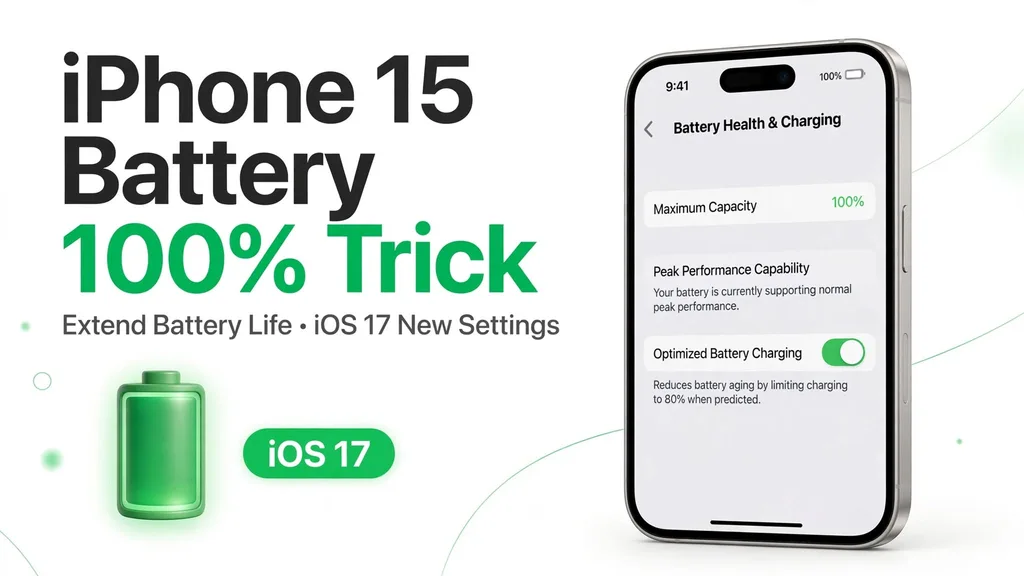
Optimized Battery Charging is available on all iPhone models running iOS 17. It learns your daily charging routine and waits to finish charging past 80% until just before you typically unplug your device .
Think of it as “Charge Limit Lite.” Unlike the permanent 80% cap on iPhone 15 models, this feature allows full charging but minimizes the time your battery spends at 100% .
How to Enable It:
Additional Battery-Saving Settings Worth Adjusting
1. Low Power Mode
Low Power Mode reduces background activity, including downloads, mail fetch, and visual effects . It can be toggled manually or set to activate at 20% battery.
How to Enable: Settings > Battery > Low Power Mode
2. Close Proximity AirDrop
When two iOS 17 devices are near each other, iPhone automatically initiates AirDrop proximity sharing. If this triggers frequently, it can drain battery significantly .
How to Disable: Settings > General > AirDrop > Toggle off “Bringing Devices Together”
3. Disable Keyboard Haptic Feedback
Keyboard haptic feedback—the subtle vibration when typing—is comfortable but proven to consume significant battery power .
How to Disable: Settings > Sounds & Haptics > Keyboard Feedback > Turn off Haptic
4. Manage Location Services
Many apps request location access unnecessarily. Limiting this can preserve battery and improve privacy .
How to Manage: Settings > Privacy & Security > Location Services > Review each app and set to “While Using” instead of “Always”
5. Turn Off Live Activities
Live Activities show real-time updates on the Lock Screen and Dynamic Island. While useful, they can consume notable battery power, especially on devices with Always-On Display .
How to Disable: Settings > Face ID & Passcode > Enter your passcode > Scroll to “Allow Access When Locked” > Toggle off Live Activities
6. Reduce Screen Brightness
Screen brightness is one of the biggest battery consumers. Keep it at 70% or less when possible .
How to Optimize:
- Enable Auto-Brightness: Settings > Accessibility > Display & Text Size > Auto-Brightness
- Shorten Auto-Lock duration: Settings > Display & Brightness > Auto-Lock > Choose a shorter time
7. Use Focus Mode
Focus Mode reduces notifications, which means fewer wake-ups for your display and less battery drain .
How to Set Up: Settings > Focus > Choose or create a Focus mode
Frequently Asked Questions
Q: Does the Charge Limit setting work on older iPhones?
A: No. The Charge Limit feature is exclusive to iPhone 15 models and later, even if older devices are upgraded to iOS 17 . Older iPhones can use Optimized Battery Charging instead.
Q: How long does Adaptive Power take to learn my usage?
A: Adaptive Power requires at least 7 days to learn your charging habits before it engages .
Q: Is the 80% Charge Limit worth it if I need all-day battery?
A: Many users find the iPhone 15 Pro Max has more than enough battery to last a full day even with the 80% limit . For travel or heavy usage days, you can temporarily disable the limit.
Q: Does Low Power Mode automatically turn on with Adaptive Power?
A: Yes, when Adaptive Power is enabled, it will automatically turn on Low Power Mode when your battery reaches 20% .
Q: Do these settings work on other iPhone models?
A: Many do! While Charge Limit and Adaptive Power are iPhone 15-exclusive features, settings like Low Power Mode, Focus Mode, and managing Location Services work across all iPhones running iOS 17 .
Conclusion
Your iPhone 15’s battery is one of its most valuable components, and with iOS 17, Apple has given you powerful tools to protect it. The Charge Limit setting alone could add a year or two to your battery’s total lifespan by reducing the chemical wear that occurs during full charges .
While some features like Adaptive Power require a week of learning before they activate, the benefits are worth the patience. Combine these settings with mindful charging habits and simple adjustments—like reducing screen brightness and managing background activity—and you’ll keep your battery performing at its best for years.
For deeper insights into iPhone battery optimization, explore our complete guide on iOS battery health settings or learn about Apple’s battery warranty and replacement options.